
00 — Quick Start / First Launch
What this screen is for
Getting OmniPrime POS open on the till for the very first time and logging in. If you can do this page, you can start selling.
Before you start
- OmniPrime POS is installed (you have the OmniPrime POS icon on the desktop).
- The PC is switched on and you are at the Windows desktop.
Step-by-step
1. Open the app
Double-click the OmniPrime POS icon on the desktop (the round purple icon with the white arrow). The app opens full-screen after a few seconds.

2. Wait for the login screen
The first time it opens it sets itself up (a few seconds). When it's ready you see the login screen with the OmniPrime logo, a Username box, a Password box and a Branch/Store list.
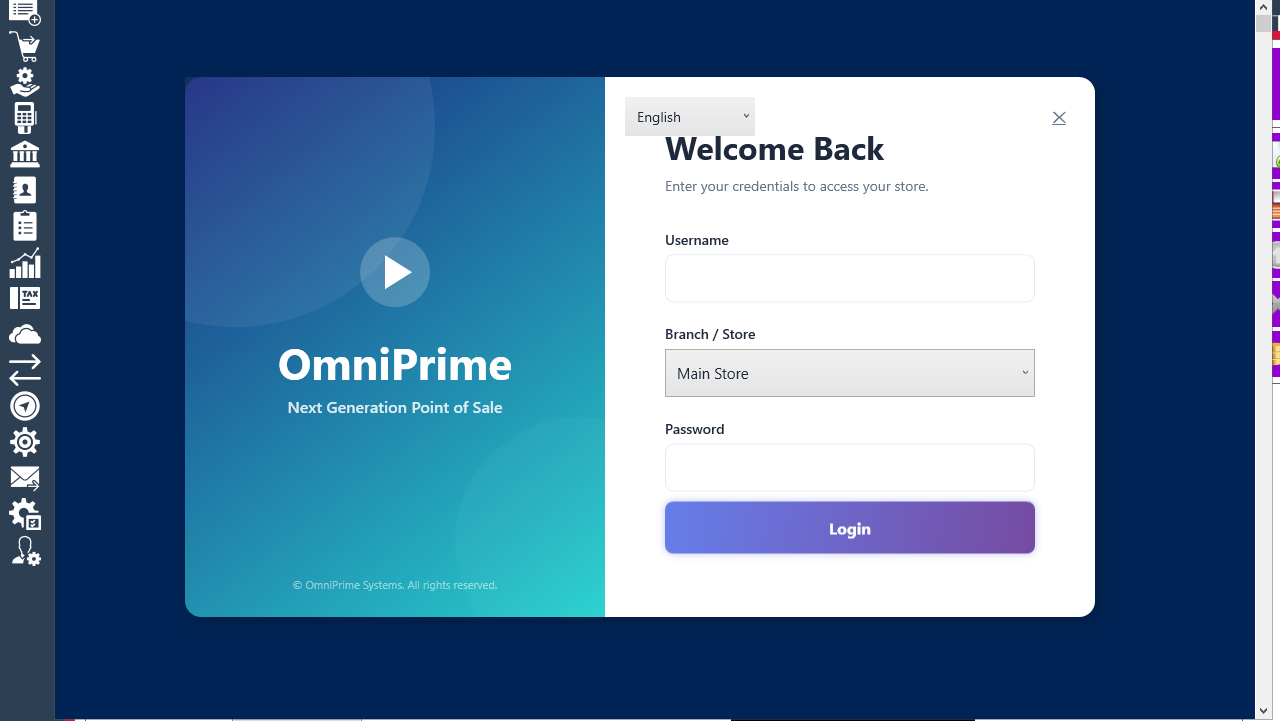
3. Type the username
Click the Username box and type your user name. For practice use admin.
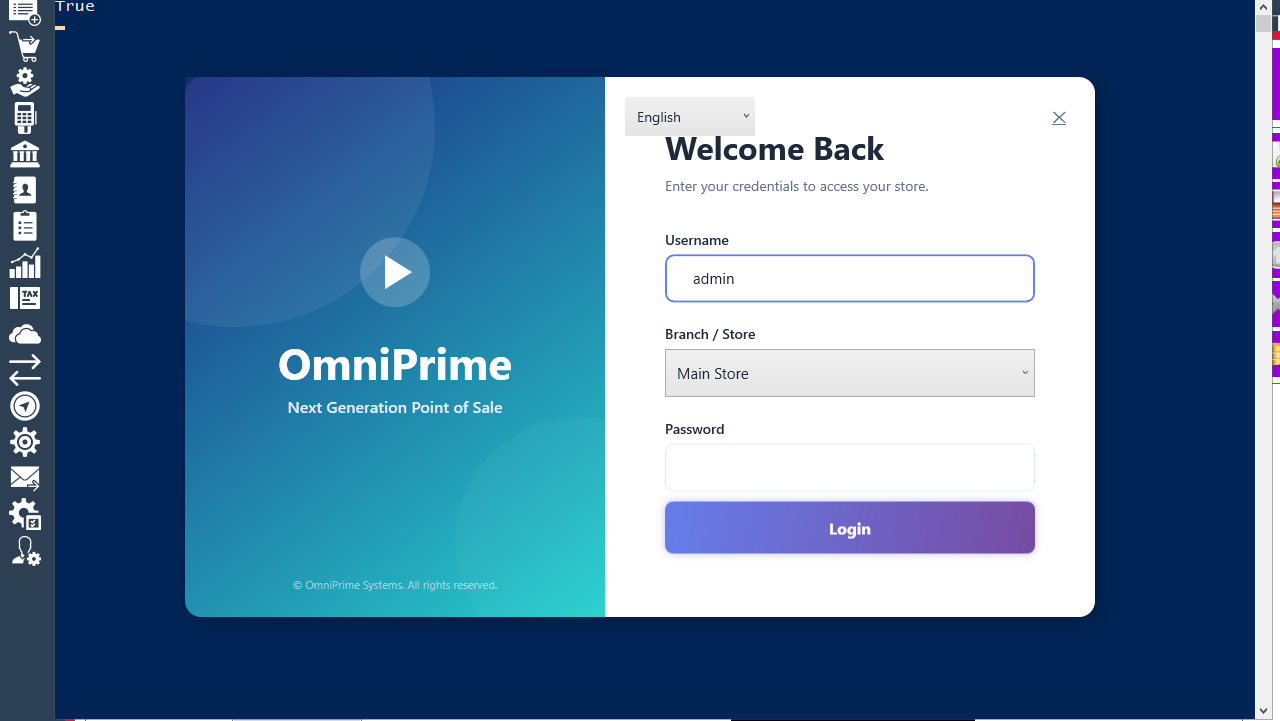
4. Type the password
Click the Password box and type your password. For practice use admin123.
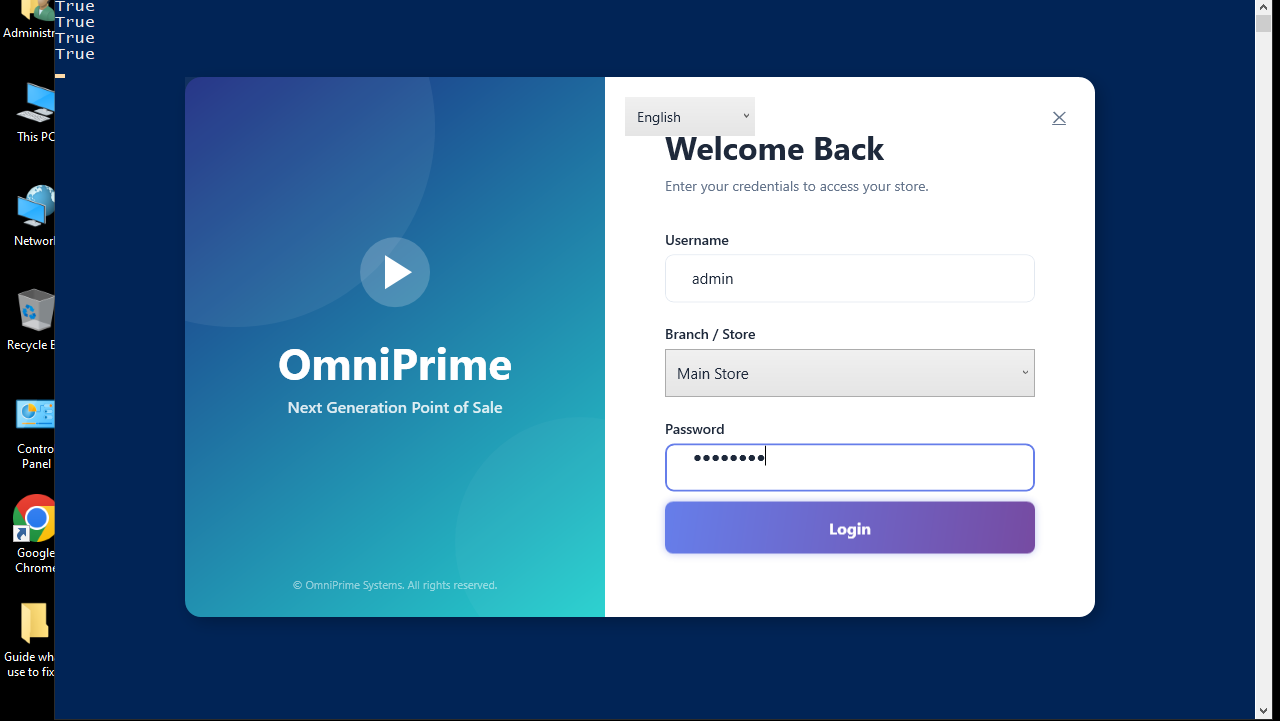
5. Choose your shop/till
Click the Branch/Store drop-down and pick your shop. For practice pick Main Store.
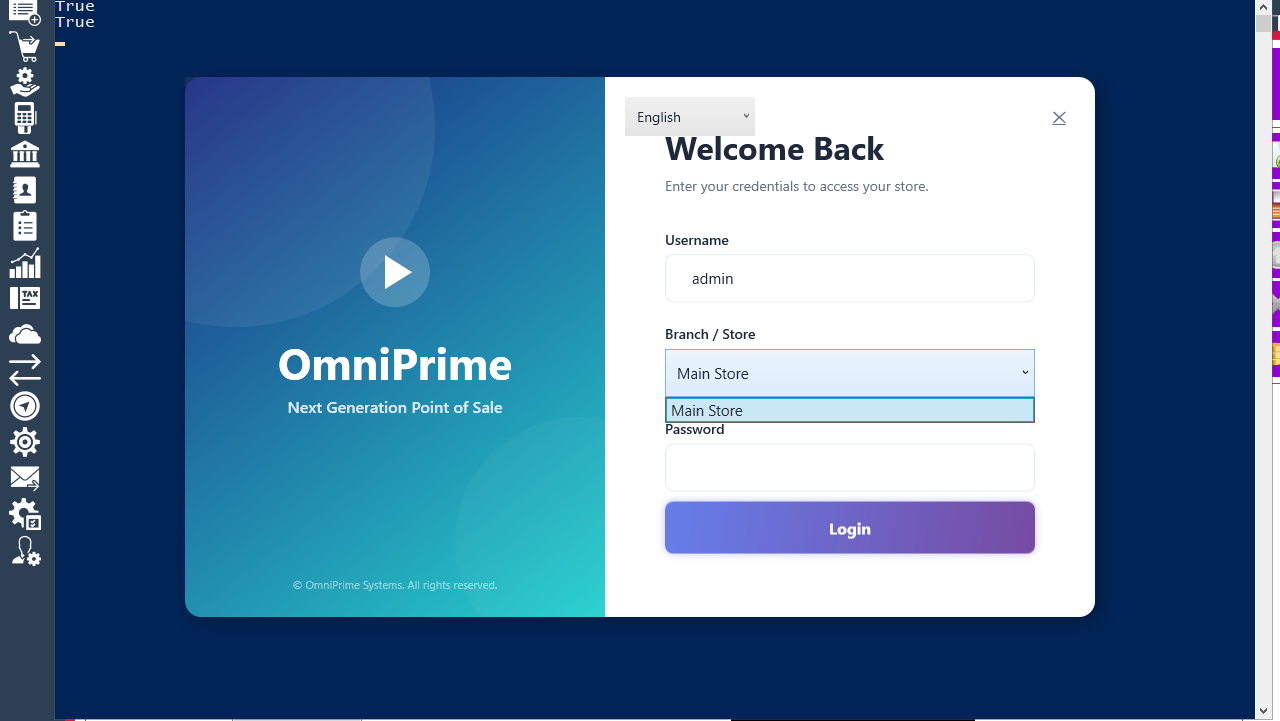
6. Click Login
Click the big Login button. The main dashboard opens.
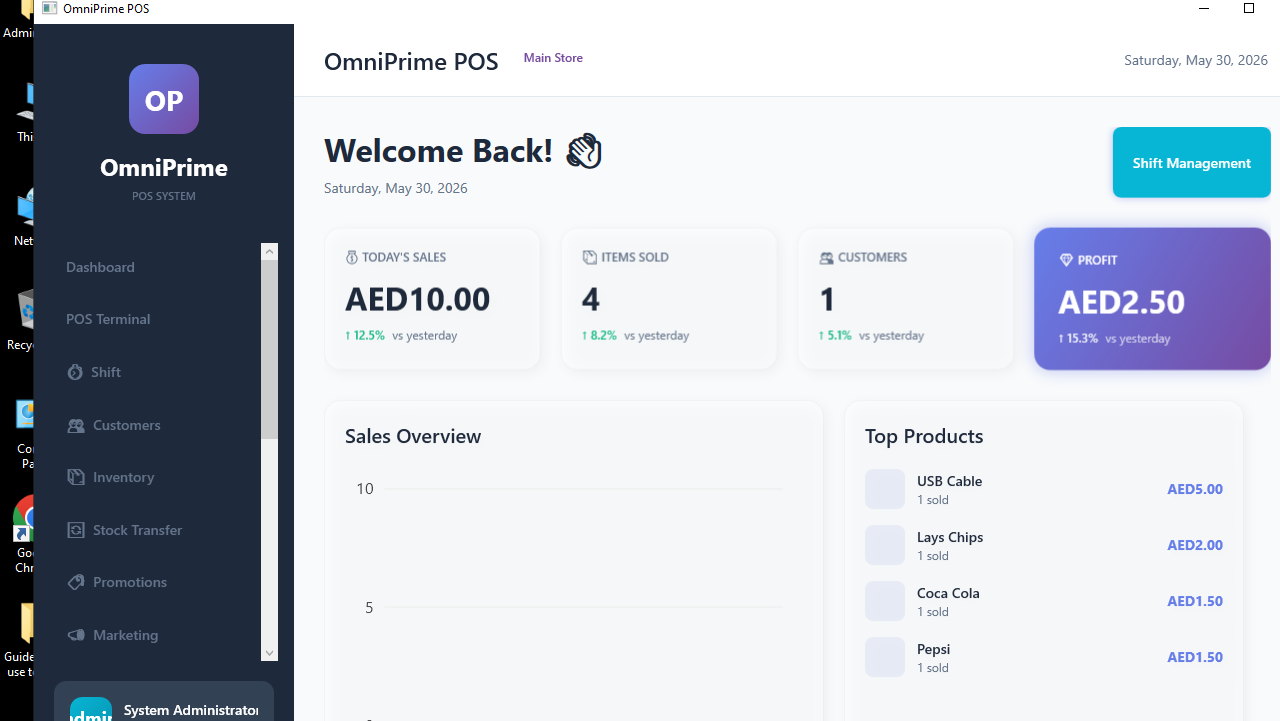
Real example (using the demo data)
- Double-click OmniPrime POS.
- Username →
admin, Password →admin123. - Branch/Store → Main Store.
- Click Login → you land on the Dashboard showing today's sales (0 so far) and quick buttons for POS, Inventory and Reports.
If something goes wrong
| You see this | What it means | How to fix it |
|---|---|---|
Invalid username or password |
The user name or password was typed wrong (watch for Caps Lock). | Re-type carefully. For practice it is exactly admin / admin123. |
| Login button does nothing | You did not pick a Branch/Store. | Click the Branch/Store list and select one, then Login. |
| App opens then closes | A first-run setup error. | Note any Startup Error box, then see 15 — Troubleshooting. |
| Screen is too big / cut off | Display scaling. | See 16 — Requirements → "Display". |
FAQ
Q: What is the default login?
A: Username admin, password admin123. Change it after first login in 13 — Users & roles.
Q: Do I need internet to use it? A: No. OmniPrime POS runs fully offline on the till. Internet is only needed if you email receipts or export to an online accounting service.
Q: Can I use a touch screen? A: Yes — turn on Touch mode in 12 — Settings for big buttons and an on-screen keyboard.