
02 — Dashboard tour
What this screen is for
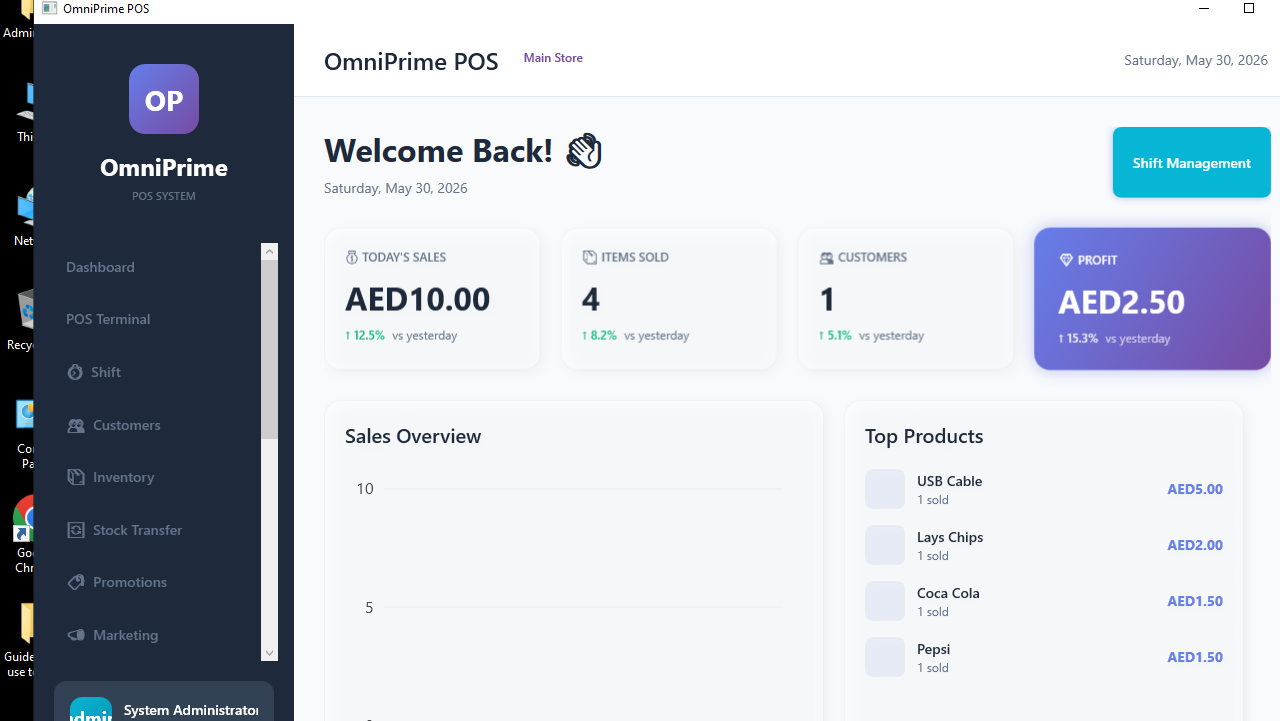
Your home base after login. It shows today's numbers and gives one-click access to every part of the app.
Before you start
- You are logged in (01 — Login).
Step-by-step
1. The top summary
At the top you see today's totals (sales, transactions) for the selected store.
2. The side menu
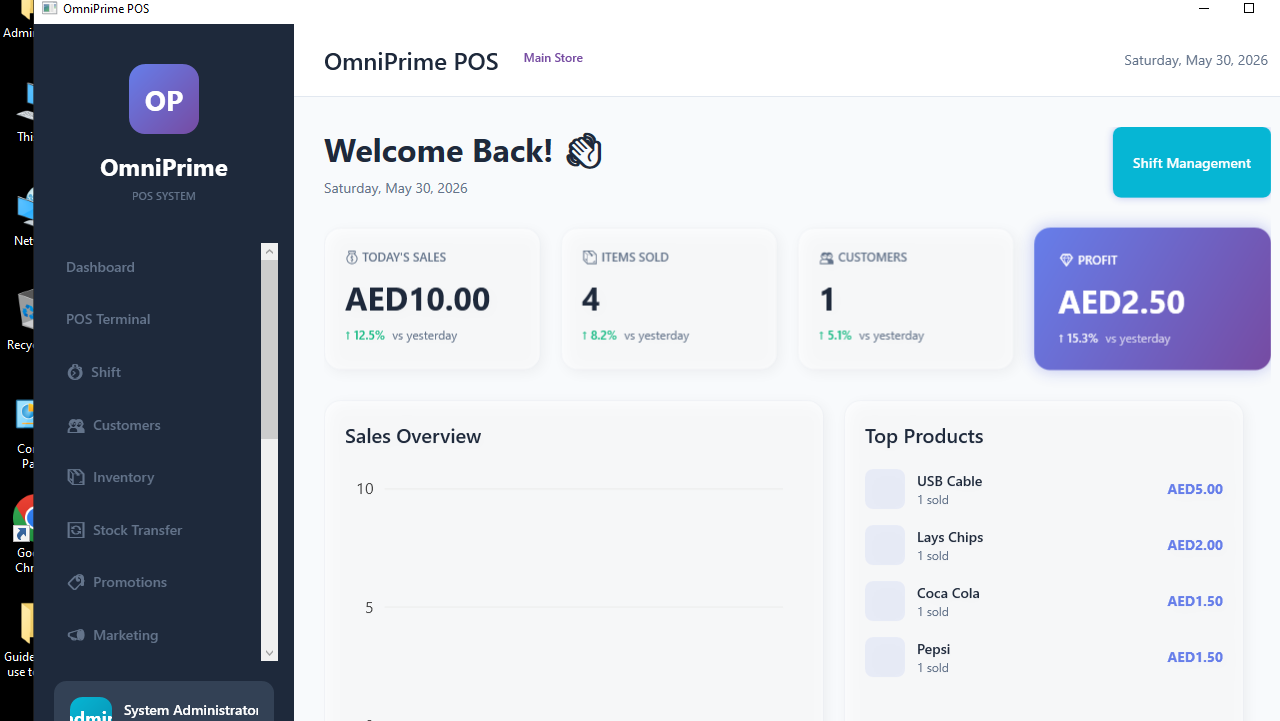
The left menu is how you move around: POS Terminal, Inventory, Reports, Customers, Settings, Users, and Log out at the bottom.
3. Quick action buttons
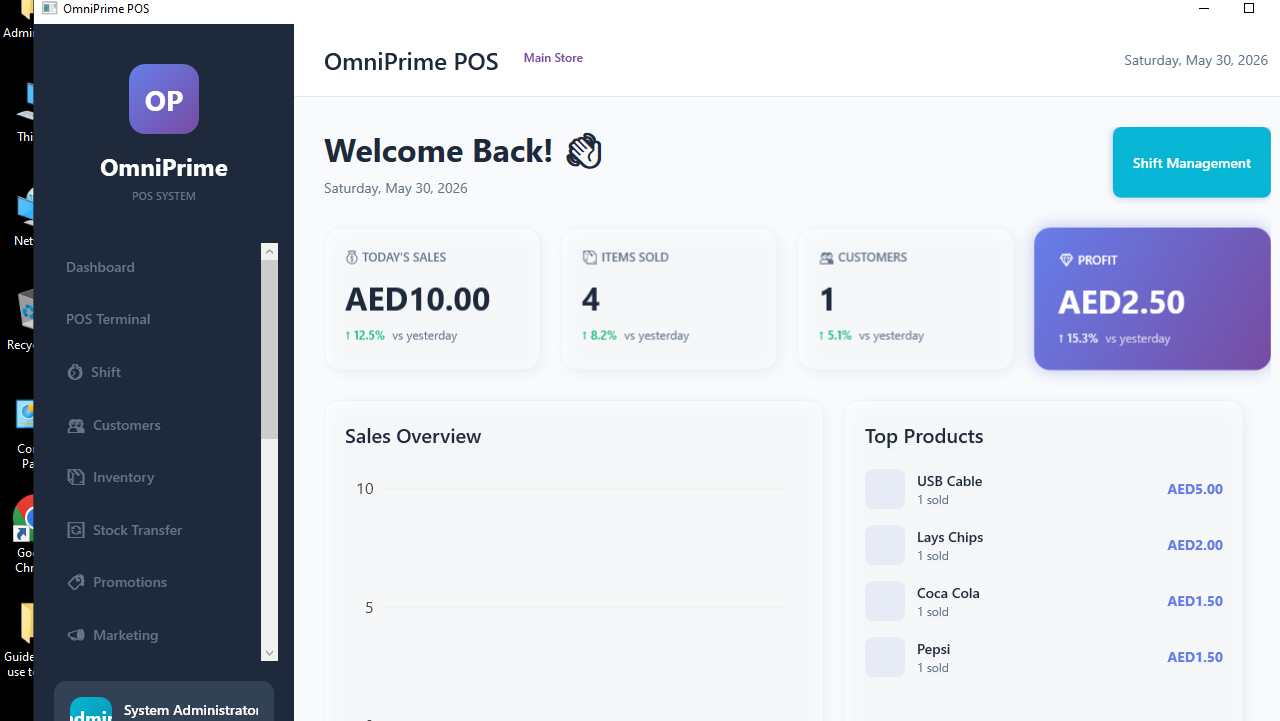
Big buttons jump straight to the most common tasks (New Sale, Add Product, View Reports).
Real example (using the demo data)
- After login you see today's sales (0 if you haven't sold yet).
- Click POS Terminal to start selling, or Inventory to manage stock.
If something goes wrong
| You see this | What it means | How to fix it |
|---|---|---|
| Numbers look wrong | Wrong store selected. | Log out and pick the right Branch/Store. |
| A menu item is missing | Your role doesn't have that permission. | Ask an administrator (13). |
FAQ
Q: How do I get back here from another screen? A: Click the app logo / Dashboard in the side menu.