
09 — Customers & loyalty
What this screen is for
Keep a customer list, attach a sale to a customer, and reward repeat buyers with loyalty points.
Before you start
- You are logged in.
Step-by-step
1. Open Customers
Click Customers in the side menu.
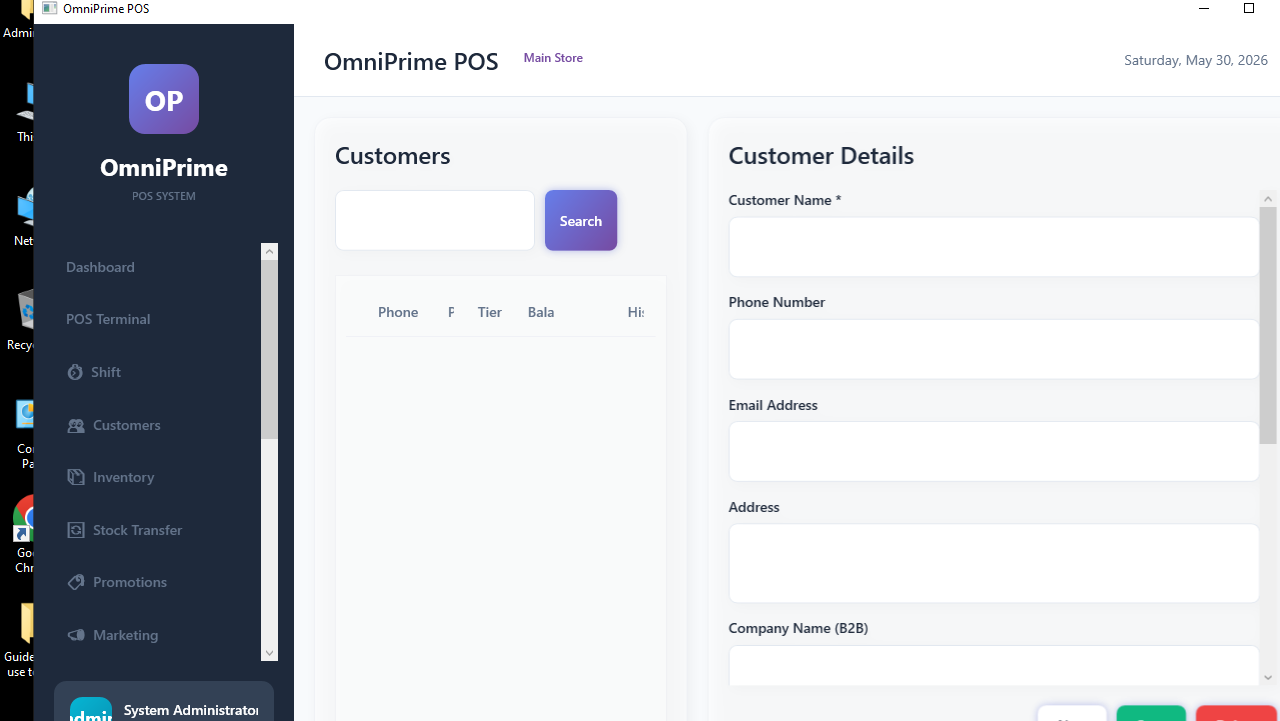
2. Add a customer
Click + Add Customer, enter name and phone (and any other details), Save.

3. Attach a customer to a sale
On the POS, choose Customer and pick/search the person before payment so the sale (and points) link to them.

4. See history & points
Open a customer to see their past purchases and loyalty points balance.

Real example (using the demo data)
- Customers → + Add Customer →
Walk-in Regular, phone0500000000→ Save. - On the POS, attach that customer to a sale → their points update after payment.
If something goes wrong
| You see this | What it means | How to fix it |
|---|---|---|
| Duplicate customer | Same phone added twice. | Search before adding; merge by keeping one. |
| Points didn't change | No customer attached to the sale. | Attach the customer before payment. |
FAQ
Q: Is a customer required to sell? A: No — most sales are walk-in. Attach a customer only when you want history/points.
Q: Can I see who my best customers are? A: Yes — customer history shows their purchases; reports can summarise.