
01 — Login & choosing your Branch/Store
What this screen is for
Signing in and telling the app which shop/till you're working on. The store you pick decides which stock and prices you see.
Before you start
- The app is open at the login screen (00 — Quick Start).
- You know your username, password and which store you work at.
Step-by-step
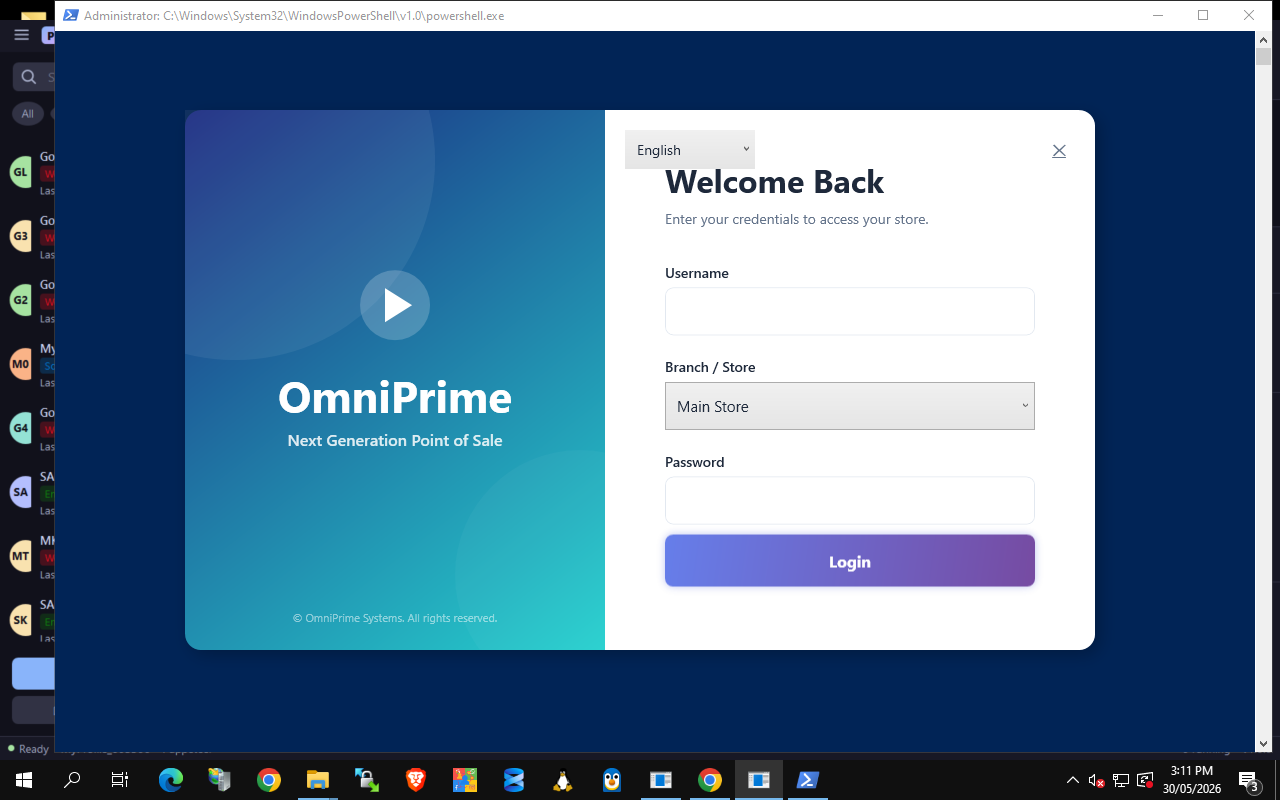
1. Enter username & password
Type your Username and Password. (Practice: admin / admin123.)
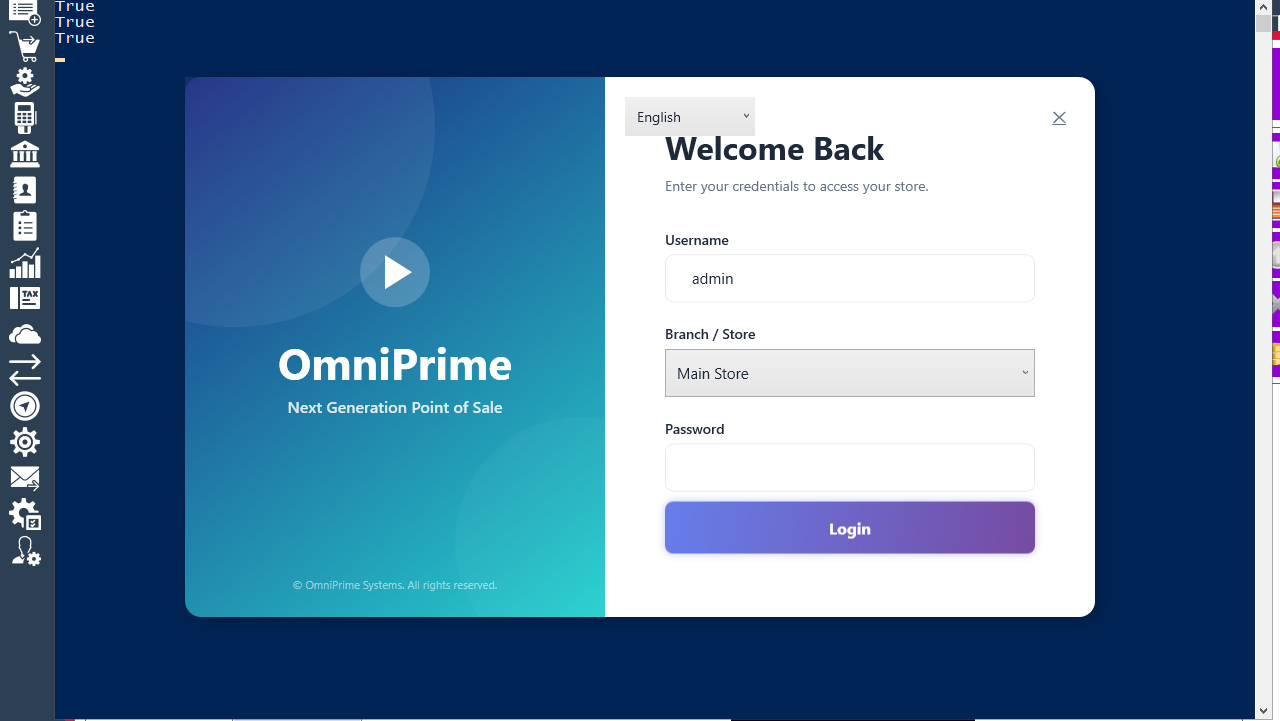
2. Select the Branch/Store
Open the Branch/Store drop-down and choose your shop (e.g. Main Store).
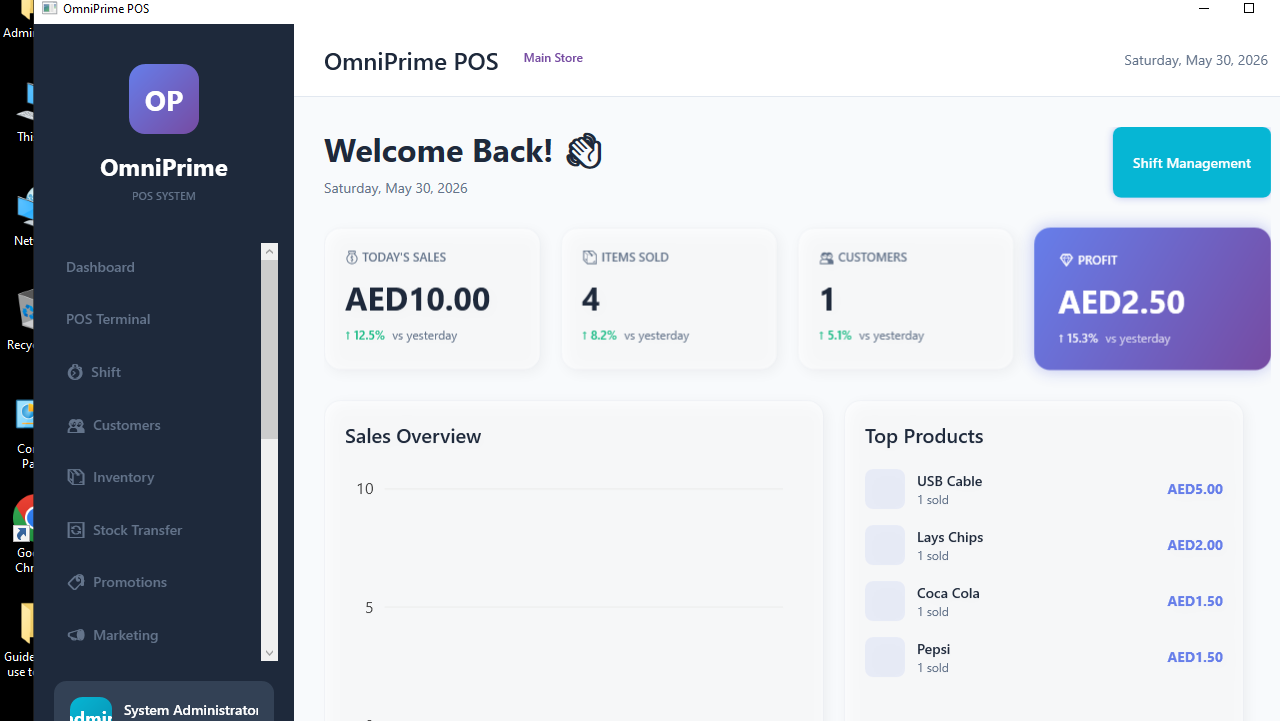
3. Click Login
Click Login. You arrive at the dashboard for that store.
4. Log out / switch user
To hand over the till, use Log out (top-right / side menu) and the next person logs in.

Real example (using the demo data)
admin/admin123, Branch/Store = Main Store, Login.- To switch shop later, Log out and log back in choosing a different store.
If something goes wrong
| You see this | What it means | How to fix it |
|---|---|---|
Invalid username or password |
Wrong credentials / Caps Lock. | Re-type carefully. |
| Login does nothing | No store selected. | Pick a Branch/Store first. |
| Wrong stock/prices after login | You picked the wrong store. | Log out and choose the correct Branch/Store. |
FAQ
Q: Why must I pick a store? A: Stock and prices are per-store, so the app needs to know which till you're on.
Q: Can two people use one login? A: Better to give each cashier their own login so reports show who sold what (13).