
10 — Reports & day-end (Z-report)
What this screen is for
See how the shop is doing — sales totals, top items, cashier performance — and close the day with a Z-report.
Before you start
- You are logged in; some sales exist.
Step-by-step
1. Open Reports
Click Reports in the side menu.
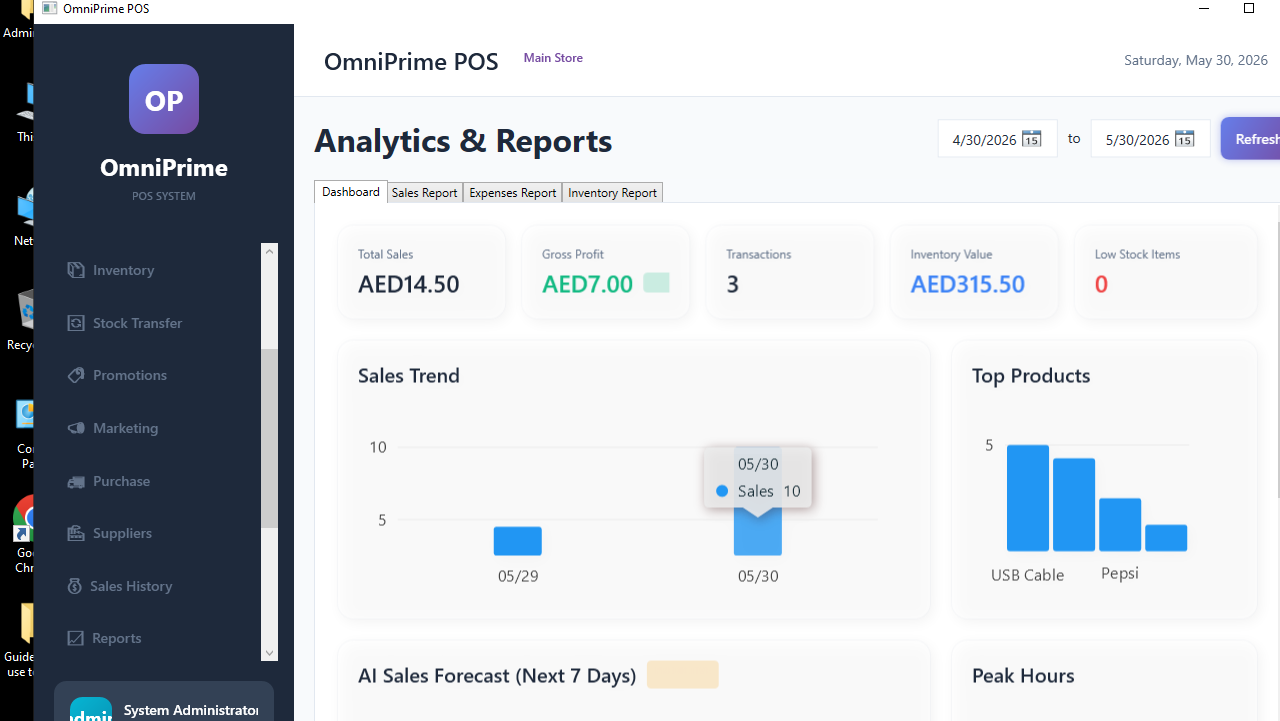
2. Pick a report & date range
Choose the report (e.g. Sales summary) and the period (today, this week, custom).
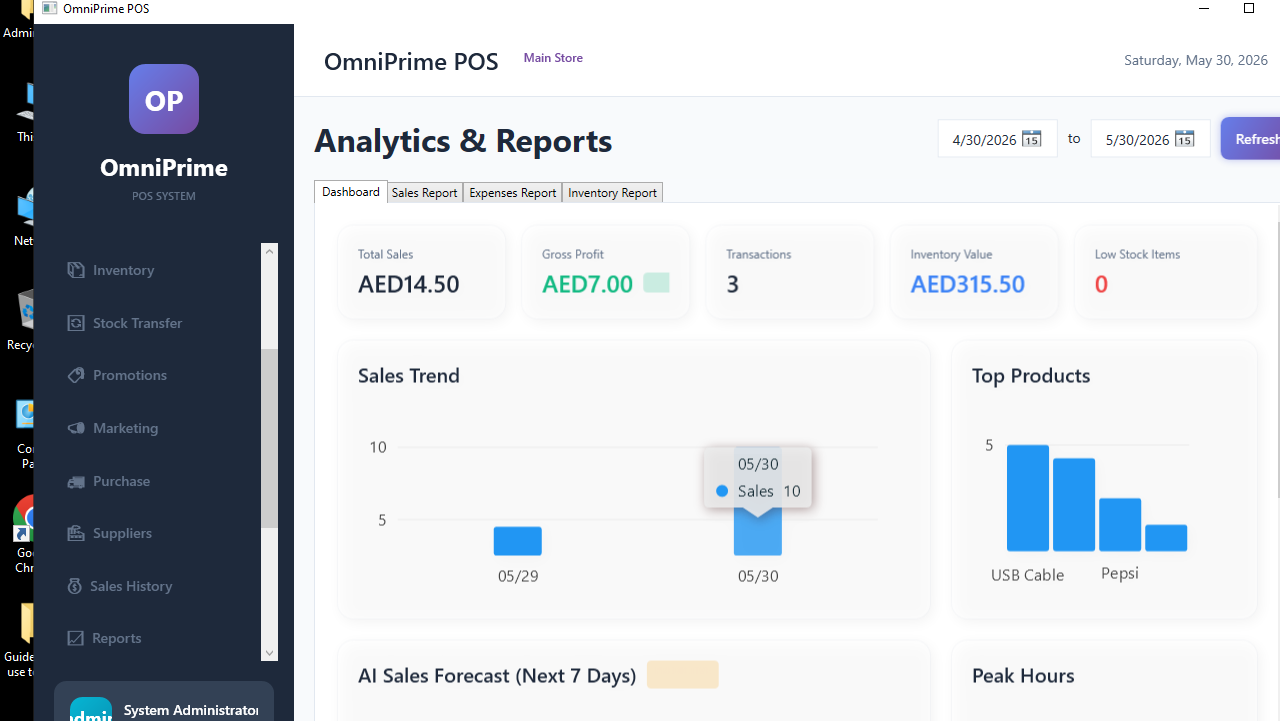
3. Read the figures
See totals, number of transactions, payment breakdown and best-selling items.

4. Day-end / Z-report
Run the day-end (Z) report to total the day's takings before you cash up.

5. Export (optional)
Send the data to your accountant — see 11 — Accounting export.

Real example (using the demo data)
- Make a few sales.
- Reports → Sales summary → Today → see your totals and payment breakdown.
- Run the Z-report at close of business.
If something goes wrong
| You see this | What it means | How to fix it |
|---|---|---|
| Report empty | No sales in the range. | Widen the dates / make a sale. |
| Totals look low | Wrong store or date range. | Check Branch/Store and dates. |
FAQ
Q: What is a Z-report? A: The end-of-day total used to reconcile the cash drawer before closing.
Q: Can I report per cashier? A: Yes — if each cashier has their own login, reports can break down by user.