
06 — Receiving stock (single & bulk)
What this screen is for
Adding new stock when a delivery arrives — one item at a time, or many at once by scanning (Bulk Receive), plus importing a whole product list from Excel.
Before you start
- You are logged in; the products exist (or you'll add them).
Step-by-step
1. Update stock for one product
Inventory → find the product → 📊 Stock → enter the quantity received → Save.
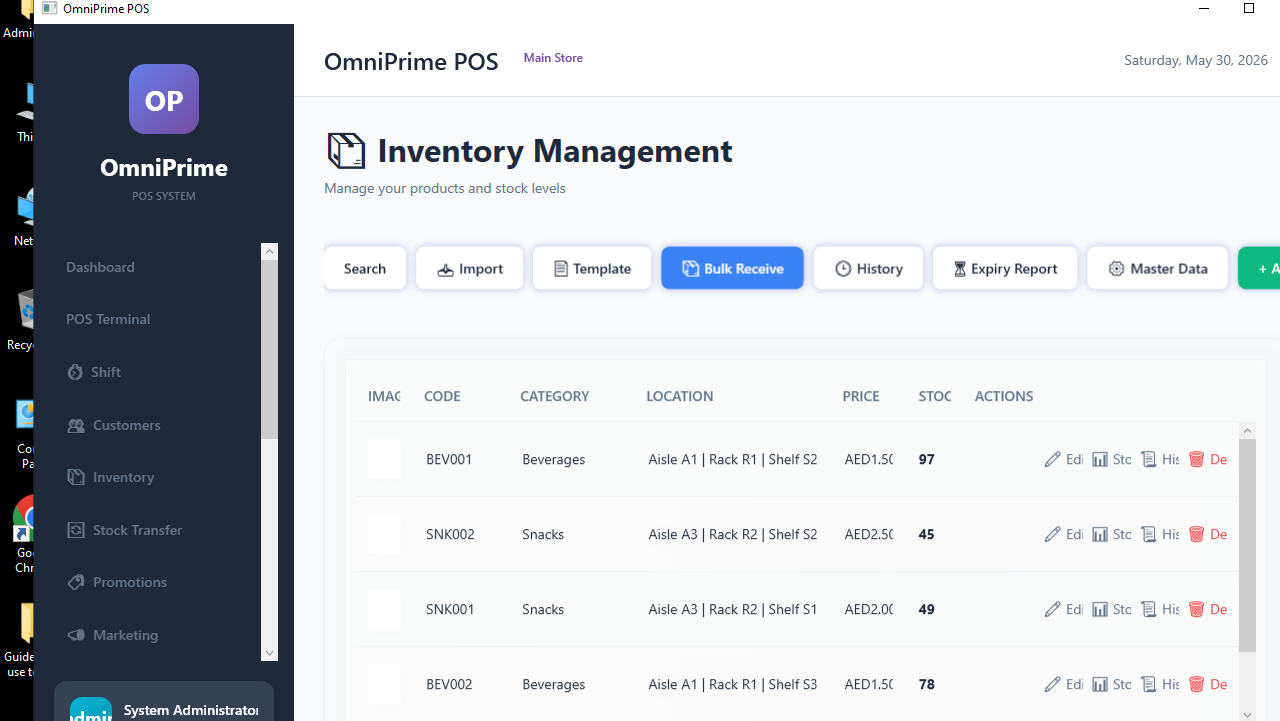
2. Bulk Receive (scan many)
Inventory → 📦 Bulk Receive → scan each item's barcode and type its quantity → the list builds up → Confirm to add it all to stock.

3. Import from Excel
Inventory → 📄 Template to download the spreadsheet, fill it in, then 📥 Import it.

4. Check the history
Inventory → 🕒 History shows every stock change with date and user.

Real example (using the demo data)
- Inventory → 📦 Bulk Receive → scan a few demo barcodes, type quantities → Confirm.
- 🕒 History → see the receive entries you just made.
If something goes wrong
| You see this | What it means | How to fix it |
|---|---|---|
| Import failed | Columns renamed/missing. | Use the downloaded template unchanged. |
| Scanned item unknown | Product not created yet. | Add it first (05). |
| Stock didn't change | You didn't Confirm/Save. | Re-do and click Confirm/Save. |
FAQ
Q: What's the fastest way to receive a big delivery? A: Bulk Receive with a scanner — scan, type qty, repeat, Confirm.
Q: Can I import prices too? A: Yes — the Excel template includes price columns.